Capture the Beauty of Kingdom Come: Deliverance 2 with Photo Mode
Kingdom Come: Deliverance 2 boasts stunning visuals, especially in fidelity mode. Want to preserve that beauty beyond gameplay? The game includes a photo mode at launch. Here's how to access and use it:
Activating Photo Mode:
- PC: Press F1 (keyboard) or simultaneously press L3 and R3 (joypad).
- Xbox Series X|S / PlayStation 5: Simultaneously press L3 and R3 (joypad). (L3 and R3 refer to pressing both joystick sticks inward.)
Entering photo mode pauses the game.
Using Photo Mode:
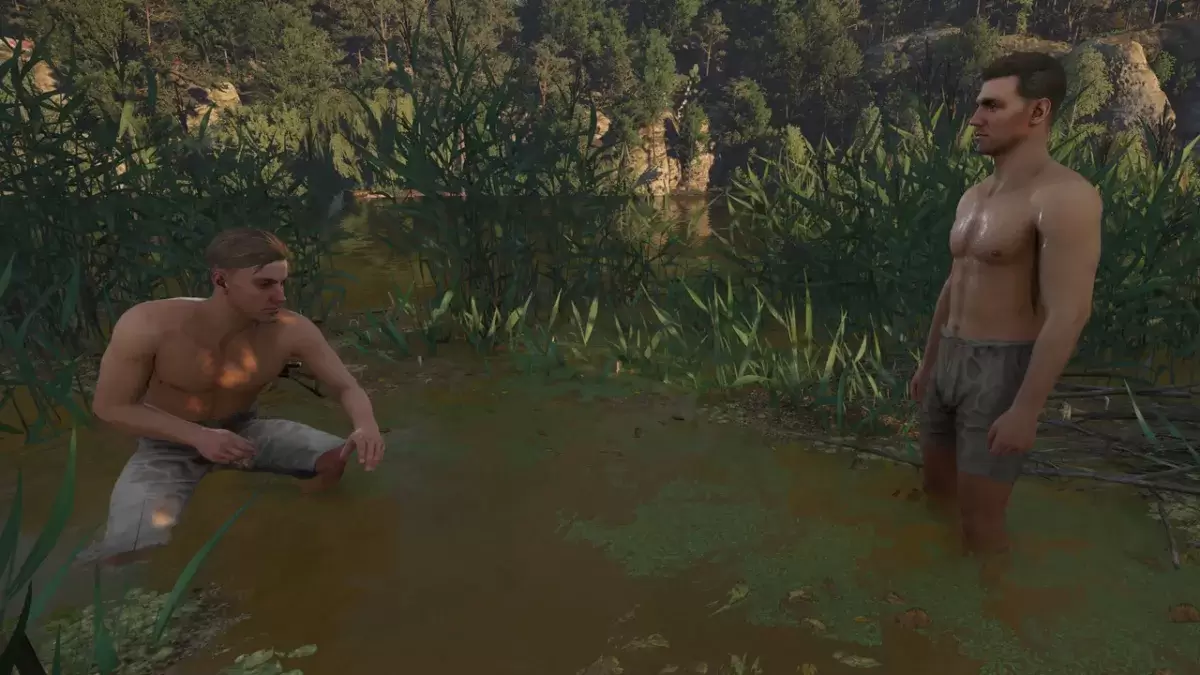
Photo mode controls offer basic camera manipulation:
Xbox Series X|S:
- Rotate camera: Left Stick
- Horizontal camera movement: Right Stick
- Move camera up: Left Trigger/LT
- Move camera down: Right Trigger/RT
- Hide interface: X
- Exit photo mode: B
- Take picture: Press Xbox button, then Y
PlayStation 5:
- Rotate camera: Left Stick
- Horizontal camera movement: Right Stick
- Move camera up: Left Trigger/LT
- Move camera down: Right Trigger/RT
- Hide interface: Square
- Exit photo mode: Circle
- Take picture: Press the Share button and select "Take Screenshot" (or hold down Share).
PC (Keyboard and Mouse):
- Move camera: Mouse
- Slow movement: Caps Lock
- Hide interface: X
- Exit photo mode: Esc
- Take picture: E
PC screenshots are saved to your Pictures folder; console screenshots are saved to your console's capture gallery.
Photo Mode Limitations:
Currently, Kingdom Come: Deliverance 2's photo mode is quite basic. While you can freely position the camera (within a certain range of Henry), features like character posing, color grading, time-of-day adjustments, or character placement are absent. Future updates may add these features.
While the current functionality is limited, the inclusion of a photo mode is appreciated, and hopefully, Warhorse Studios will expand its capabilities in future patches.