Mastering Voice Chat in Monster Hunter Wilds: A Comprehensive Guide
This guide explains how to use and mute voice chat in Monster Hunter Wilds. While multiplayer is a core feature, you're not obligated to use voice communication. If you choose to, and aren't using external platforms like Discord, this guide will walk you through the in-game settings.
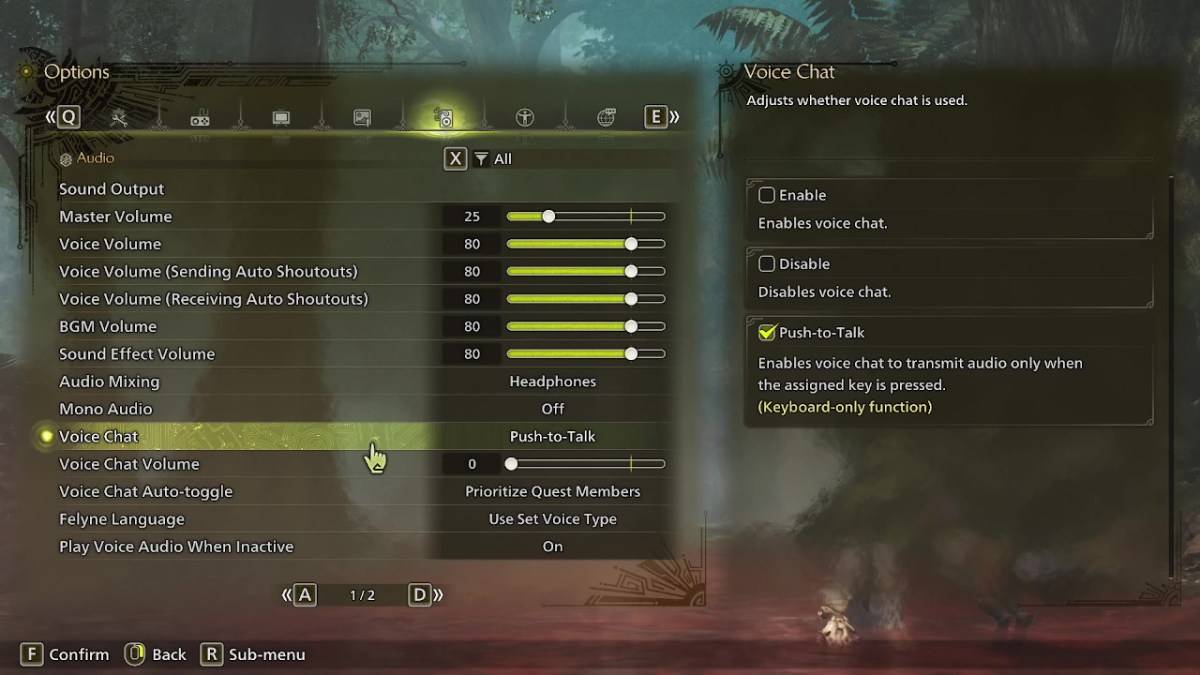
Access the voice chat settings within the game's audio options menu. Navigate to the options menu (accessible in-game or from the main menu), then select the third tab from the right. Scroll down slightly to locate the Voice Chat settings. Three options are available:
- Enable: Voice chat is always active.
- Disable: Voice chat is completely deactivated.
- Push-to-Talk: Activates voice chat only when a designated keyboard key is pressed. (Keyboard only).
Additionally, you can adjust the Voice Chat Volume to control the audio level. The Voice Chat Auto-Toggle setting allows you to prioritize voice chat from:
- Quest Members: Those currently participating in the same quest. (Recommended for most players)
- Link Party Members: Individuals in your link party, useful for collaborative gameplay or story progression.
- Off: Automatic switching is disabled.
While Monster Hunter Wilds' built-in voice chat offers convenience, especially for cross-platform play, remember that the audio quality may be inferior to dedicated communication apps. We strongly recommend using Discord or similar services for a superior audio experience.