Optimize Your Fortnite PC Settings for Peak Performance
Fortnite's demanding nature can lead to frustrating low frame rates, hindering gameplay. However, optimizing your in-game settings can significantly improve performance. This guide details the best PC settings for a smoother, more enjoyable Fortnite experience.
Display Settings:
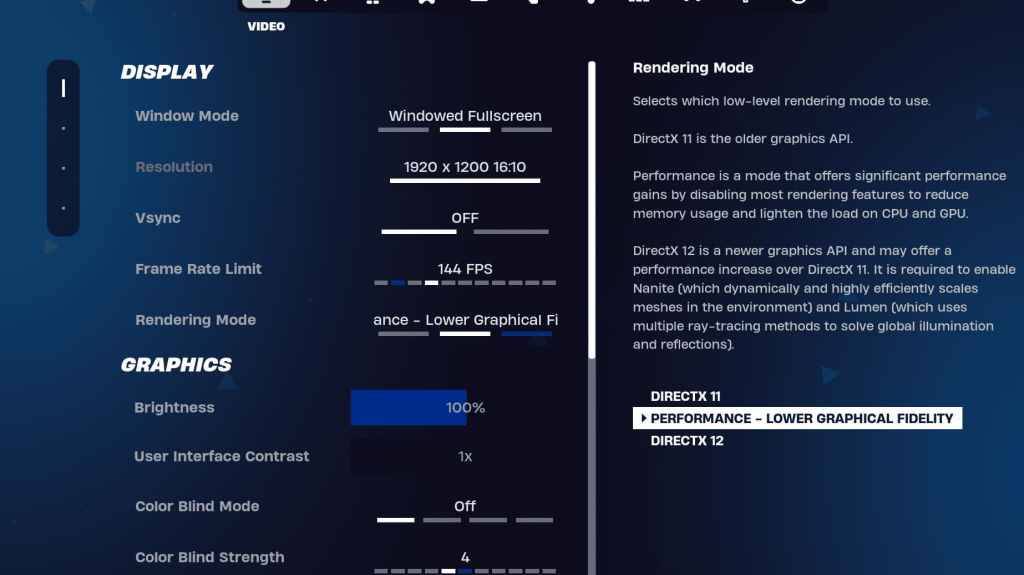
The Display section significantly impacts performance. Here's the recommended configuration:
| Setting | Recommended |
|---|---|
| Window Mode | Fullscreen (best performance); Windowed Fullscreen (for frequent alt-tabbing) |
| Resolution | Native monitor resolution (e.g., 1920x1080). Reduce for lower-end PCs. |
| V-sync | Off (prevents input lag) |
| Framerate Limit | Monitor refresh rate (e.g., 144Hz, 240Hz) |
| Rendering Mode | Performance (highest FPS) |
Rendering Modes Explained:
Fortnite offers three rendering modes: Performance, DirectX 11, and DirectX 12. DirectX 11 is stable, while DirectX 12 offers potential performance gains on newer hardware. However, Performance mode consistently delivers the highest FPS and lowest input lag, making it the preferred choice for competitive players, even if visuals are slightly less refined.
Graphics Settings:
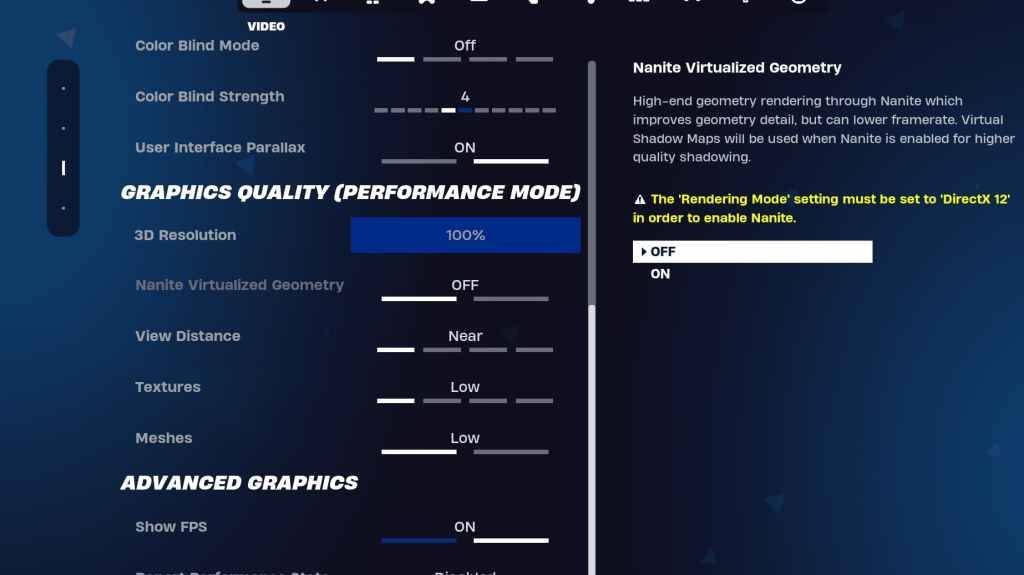
The Graphics settings are crucial for FPS optimization. Prioritize minimizing resource usage for maximum frame rates:
| Setting | Recommended |
|---|---|
| Quality Preset | Low |
| Anti-Aliasing & Super Resolution | Off/Low |
| 3D Resolution | 100% (70-80% for low-end PCs) |
| Nanite Virtual Geometry (DX12) | Off |
| Shadows | Off |
| Global Illumination | Off |
| Reflections | Off |
| View Distance | Epic |
| Textures | Low |
| Effects | Low |
| Post Processing | Low |
| Hardware Ray Tracing | Off |
| Nvidia Low Latency Mode | On + Boost (Nvidia GPUs only) |
| Show FPS | On |
Game Settings:
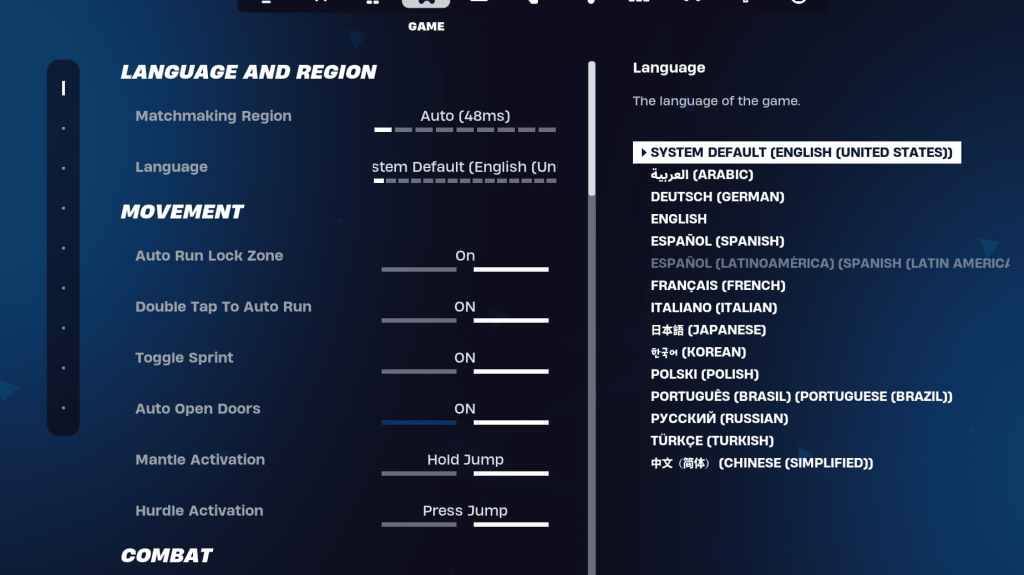
Game settings don't affect FPS but significantly impact gameplay. Customize these to your preference, but consider these recommendations:
- Movement: Auto Open Doors: On; Double Tap to Auto Run: On (controllers)
- Combat: Hold to Swap Pickup: On; Toggle Targeting: Personal preference; Auto Pickup Weapons: On
- Building: Reset Building Choice: Off; Disable Pre-edit Option: Off; Turbo Building: Off; Auto-Confirm Edits: Personal preference; Simple Edit: Personal preference; Tap to Simple Edit: On (if Simple Edit is on)
Audio Settings:
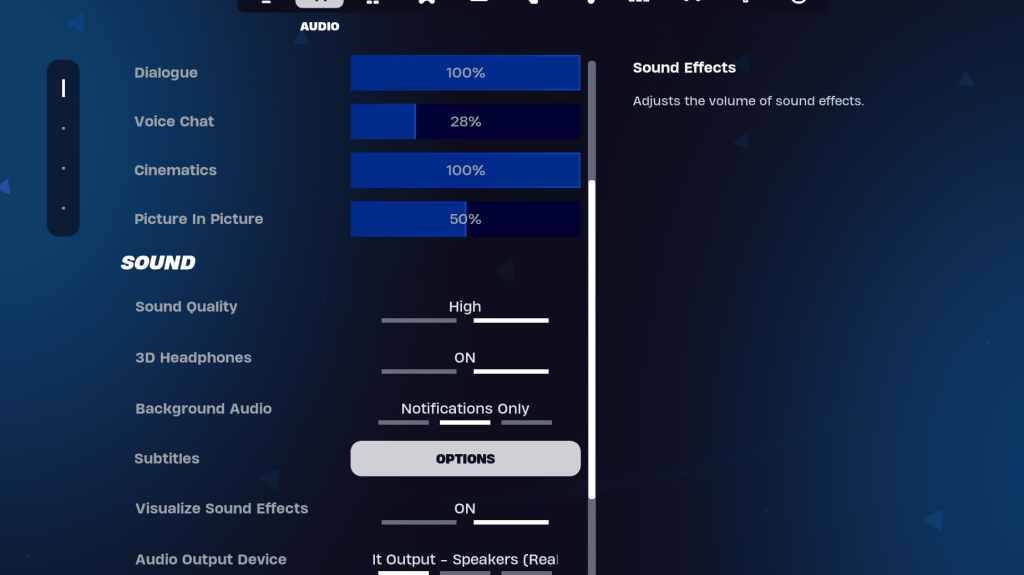
Good audio is essential in Fortnite. Enable 3D Headphones (experiment for compatibility) and Visualize Sound Effects for enhanced spatial awareness.
Keyboard and Mouse Settings:
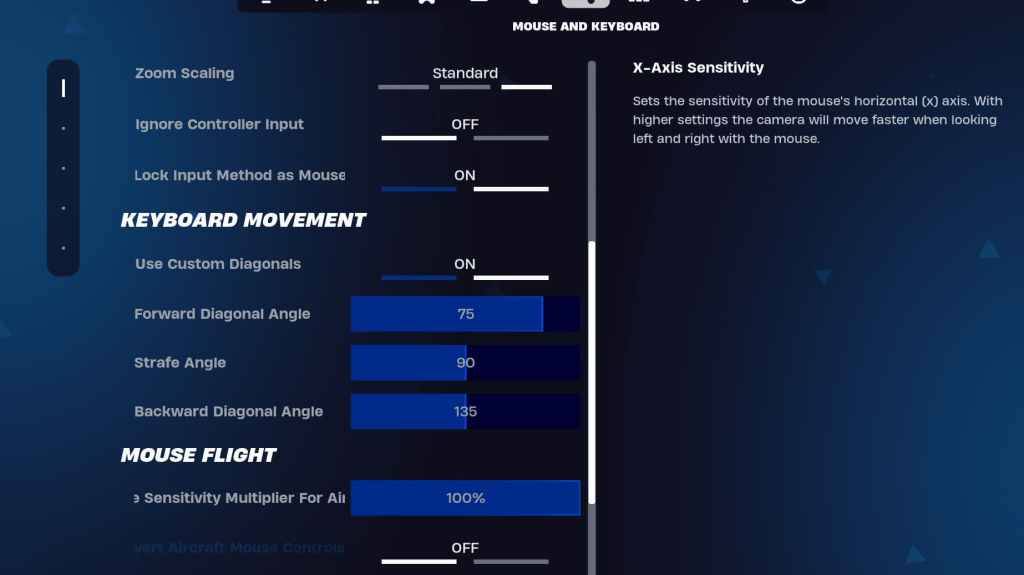
Configure sensitivity and keybinds in the Keyboard and Mouse and Keyboard Controls tabs. Adjust X/Y Sensitivity, Targeting Sensitivity (45-60%), Scope Sensitivity (45-60%), and Building/Editing Sensitivity to your preference. Consider using custom diagonals with adjusted angles for optimal movement. Keybinds are largely personal preference.
By implementing these settings, you can significantly improve your Fortnite performance and overall gaming experience. Remember that some settings are subjective and may require experimentation to find your optimal configuration.