Quick Links
The Sega Master System, an iconic 8-bit console that rivaled the NES, brought gamers a plethora of unforgettable titles. From exceptional ports like Golden Axe, Double Dragon, and Streets of Rage to ambitious games like Mortal Kombat and Asterix & Obelix, which pushed the console's limits to near 16-bit performance, the Master System holds a special place in retro gaming history.
For enthusiasts eager to relive these classics on modern hardware, the Steam Deck, paired with the powerful EmuDeck software, offers a seamless solution. Here's a comprehensive guide on how to set up and enjoy Sega Master System games on your Steam Deck.
Updated January 15, 2024, by Michael Llewellyn: While the Steam Deck's capabilities far exceed those of the 8-bit Master System, achieving optimal performance for these retro games can be challenging. This is where Decky Loader and the Power Tools plugin come into play. EmuDeck developers recommend installing both to enhance your retro gaming experience. This guide has been updated to include detailed installation steps and solutions for restoring functionality after Steam Deck updates.
Before Installing EmuDeck
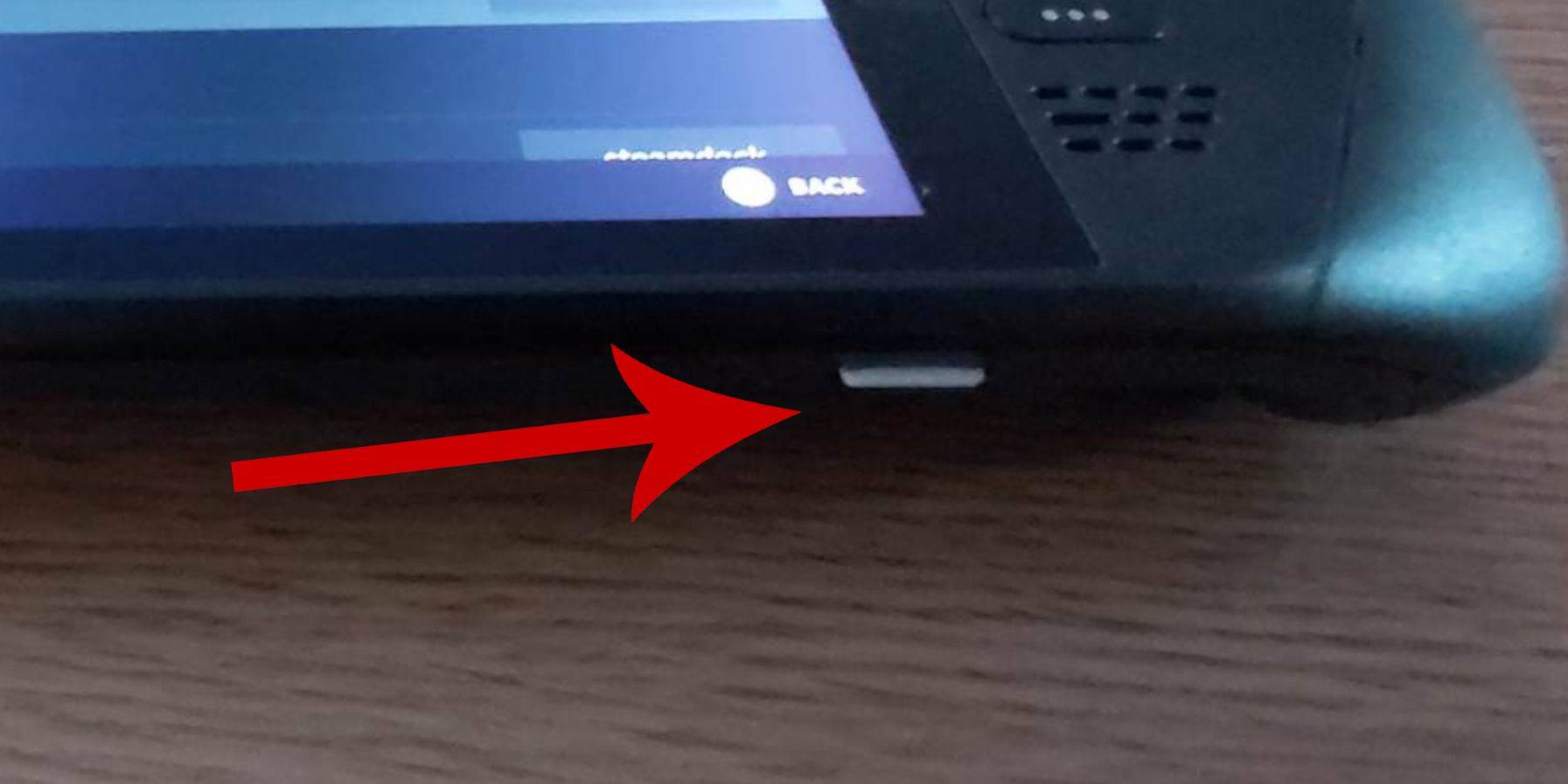 Before you dive into installing EmuDeck on your Steam Deck for Sega Master System games, ensure you have the right tools and settings in place for a smooth setup:
- Keep your Steam Deck plugged into a power source or fully charged.
- Use a high-speed micro SD card, formatted on the Steam Deck, for optimal performance.
- Alternatively, an external HDD can be used, though it will compromise the device's portability.
- A keyboard and mouse can simplify file transfers and installation processes, mimicking a home computer setup.
- If you don't have these peripherals, access the built-in keyboard by pressing the Steam and X buttons simultaneously and use the trackpads as a mouse substitute.
Activate Developer Mode
To ensure your emulators run smoothly, you must activate Developer Mode on your Steam Deck:
- Press the Steam button to access the left panel.
- Navigate to the System menu and select System Settings.
- Enable Developer Mode.
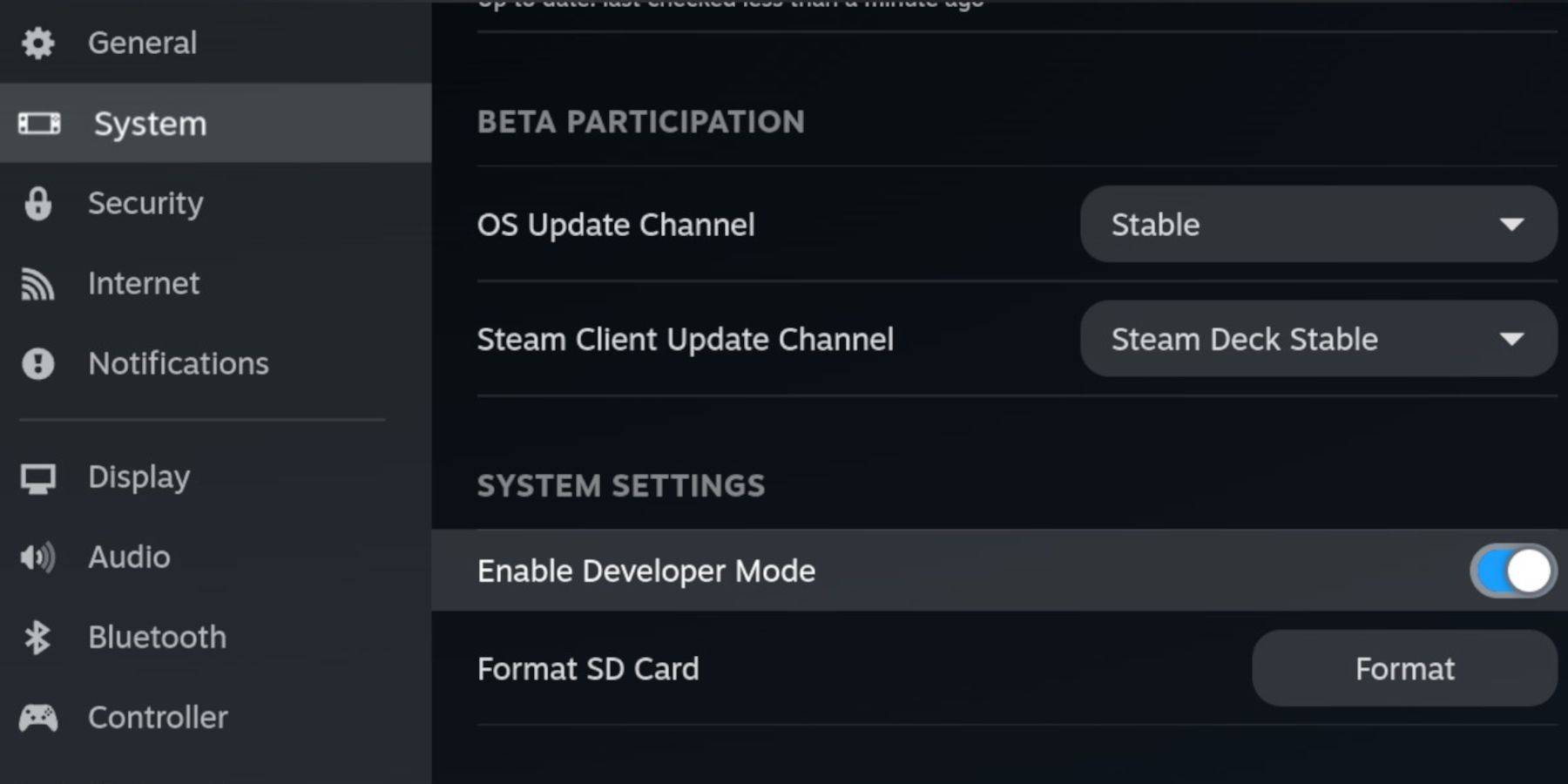 - Find the Developer menu at the bottom of the left panel.
- Open the Developer menu.
- Under Miscellaneous, enable CEF Remote Debugging.
- Press the Steam Button, select Power, and restart your Steam Deck.
Note that CEF Remote Debugging may be disabled after updates, which can affect plugins and emulators. Always check the Developer Menu post-update to ensure it's enabled.
Installing EmuDeck In Desktop Mode
 - To switch to Desktop Mode, press the Steam button, select Power, and choose Desktop Mode.
- Use a browser like Chrome or Firefox to download EmuDeck.
- Choose the appropriate SteamOS version and download the installer. Double-click to launch it and select the recommended install option.
- Opt for a Custom Install.
- After installation, open the menu and select the SD card labeled Primary to rename it for easy access in the Dolphin file manager.
- You can install all emulators or focus solely on the Sega Master System by selecting Retroarch.
RetroArch is a versatile application that can run multiple emulators for classic gaming systems, accessible via the 'Emulators' tab in your Steam library.
- Ensure the Steam Rom Manager is selected alongside Retroarch to integrate the games into your main Steam library.
- Enable the 'Configure CRT Shader for Classic 3D Games' feature for an authentic retro look.
- Click Finish to complete the installation.
Transferring Master System Roms
With Retroarch and EmuDeck installed, it's time to add your Sega Master System ROMs:
- Launch the Dolphin File Manager.
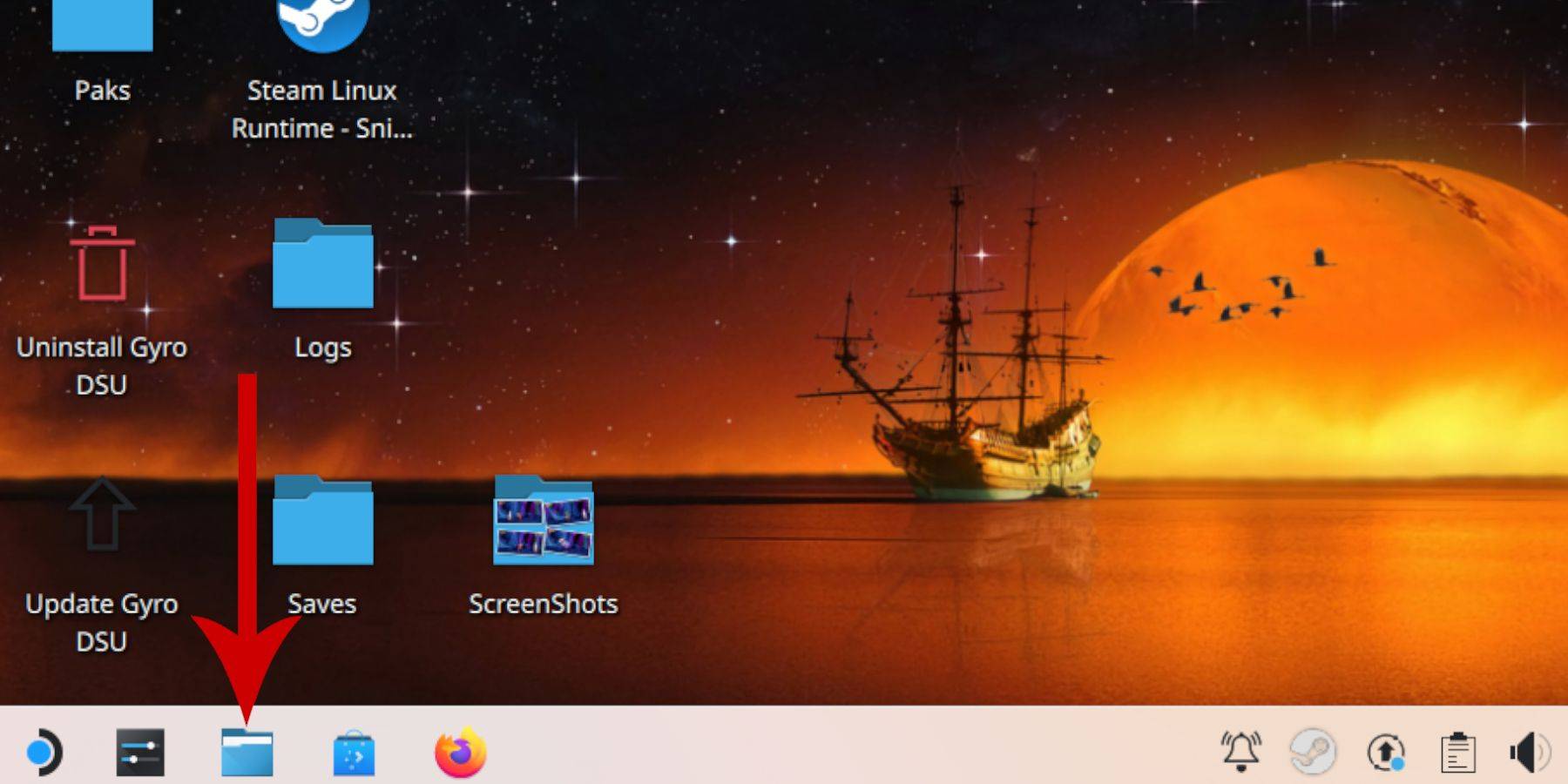 - Navigate to Removable Devices on the left panel and open the SD card labeled Primary.
- Access the Emulation folder, then ROMS.
- Locate the 'mastersystem' folder.
- Transfer or copy your Sega Master System ROM files, which typically have the '.sms' extension, such as 'Pro Wrestling.sms.' Ignore the 'media' file.
Adding Master System Games To The Steam Library
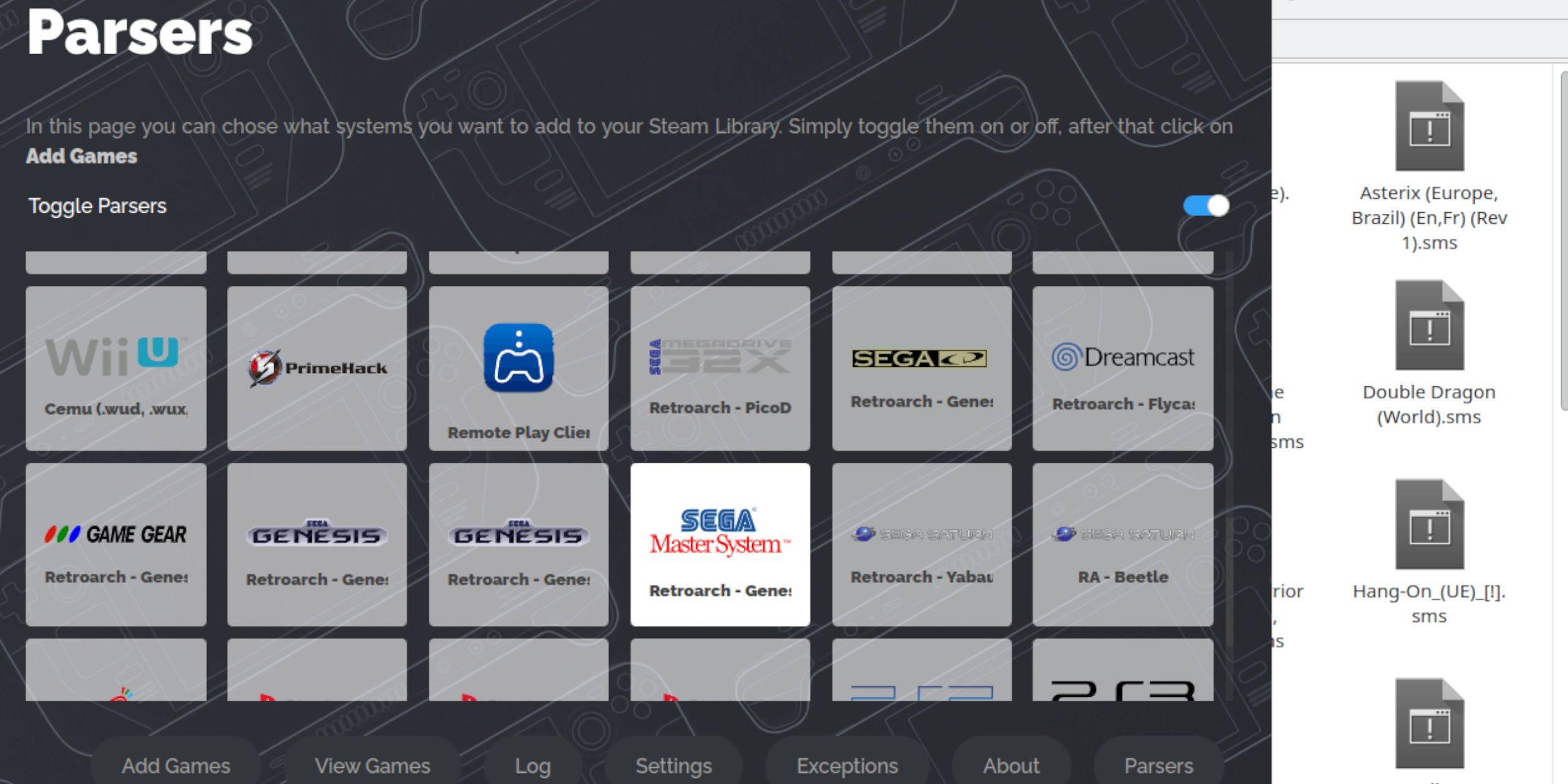 To enjoy Sega Master System games in Gaming Mode, add them to your Steam Library:
- Open EmuDeck in Desktop Mode.
- Access the Steam Rom Manager.
- Click Next on the Welcome to SRM! page.
- Disable Parsers.
- Select Sega Master System on the Parsers screen.
- Click Add Games, then Parse.
- Verify that the games and their cover art are displayed correctly, then select Save to Steam.
Fix Or Upload Missing Artwork
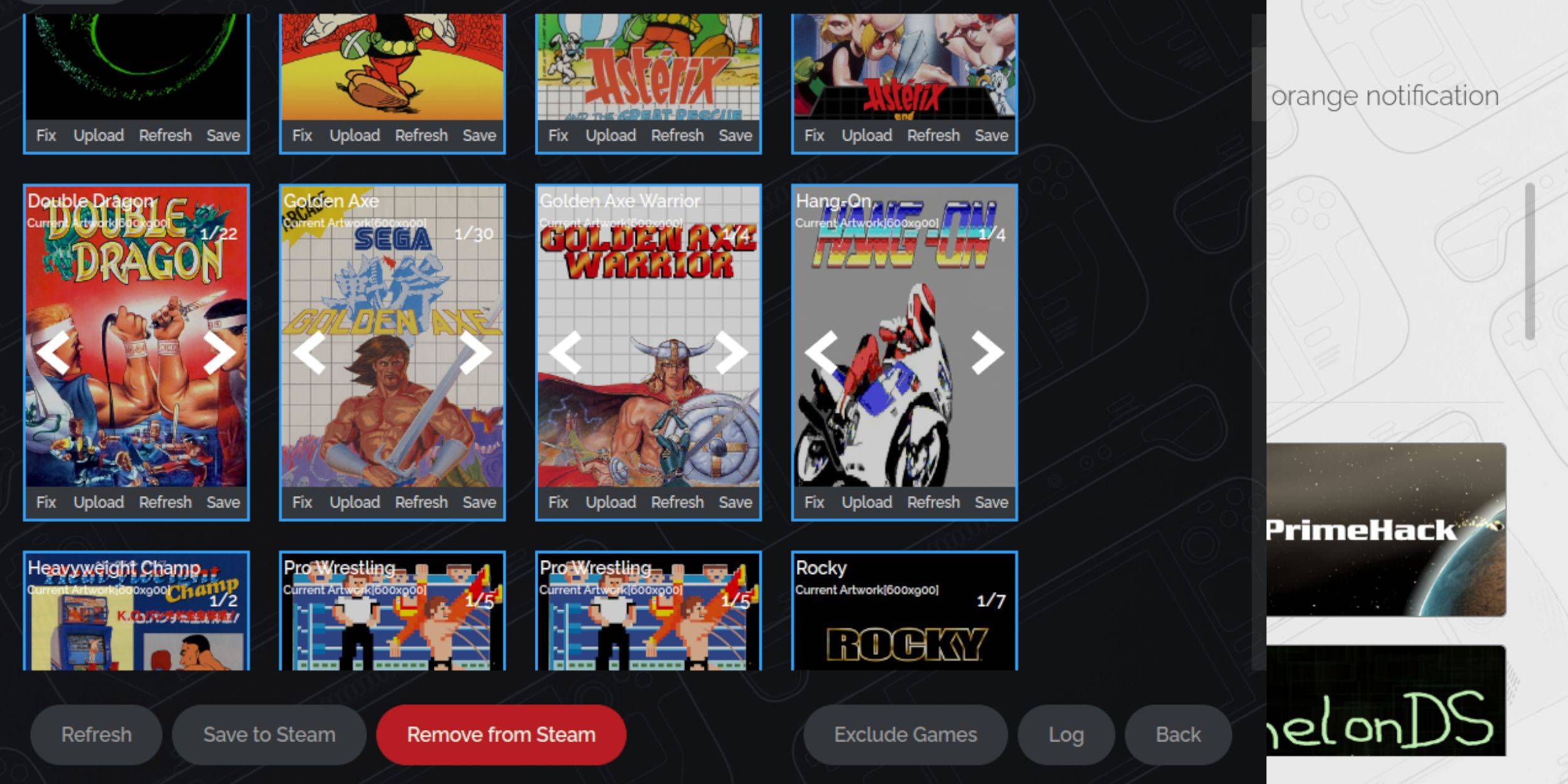 Given the age of the Sega Master System, you might encounter missing or incorrect artwork. Here's how to fix or replace it:
- Click Fix on the cover frame.
- The Steam ROM Manager should automatically display cover art. If it's missing, enter the game's title in the Search for game field.
- Browse the list, select the best cover, and choose Save and close.
Upload Missing Artwork
If the Steam Rom Manager can't find the correct artwork, follow these steps:
- Use a browser to find the correct artwork and save it to the Steam Deck's Pictures folder.
- Click Upload on the cover frame.
- Select the new artwork from the Pictures folder, then save and close.
- If the image doesn't appear, use the left and right arrows to locate it.
- Click Save to Steam.
- Once the batch files are processed, switch back to Gaming Mode.
Playing Master System Games On The Steam Deck
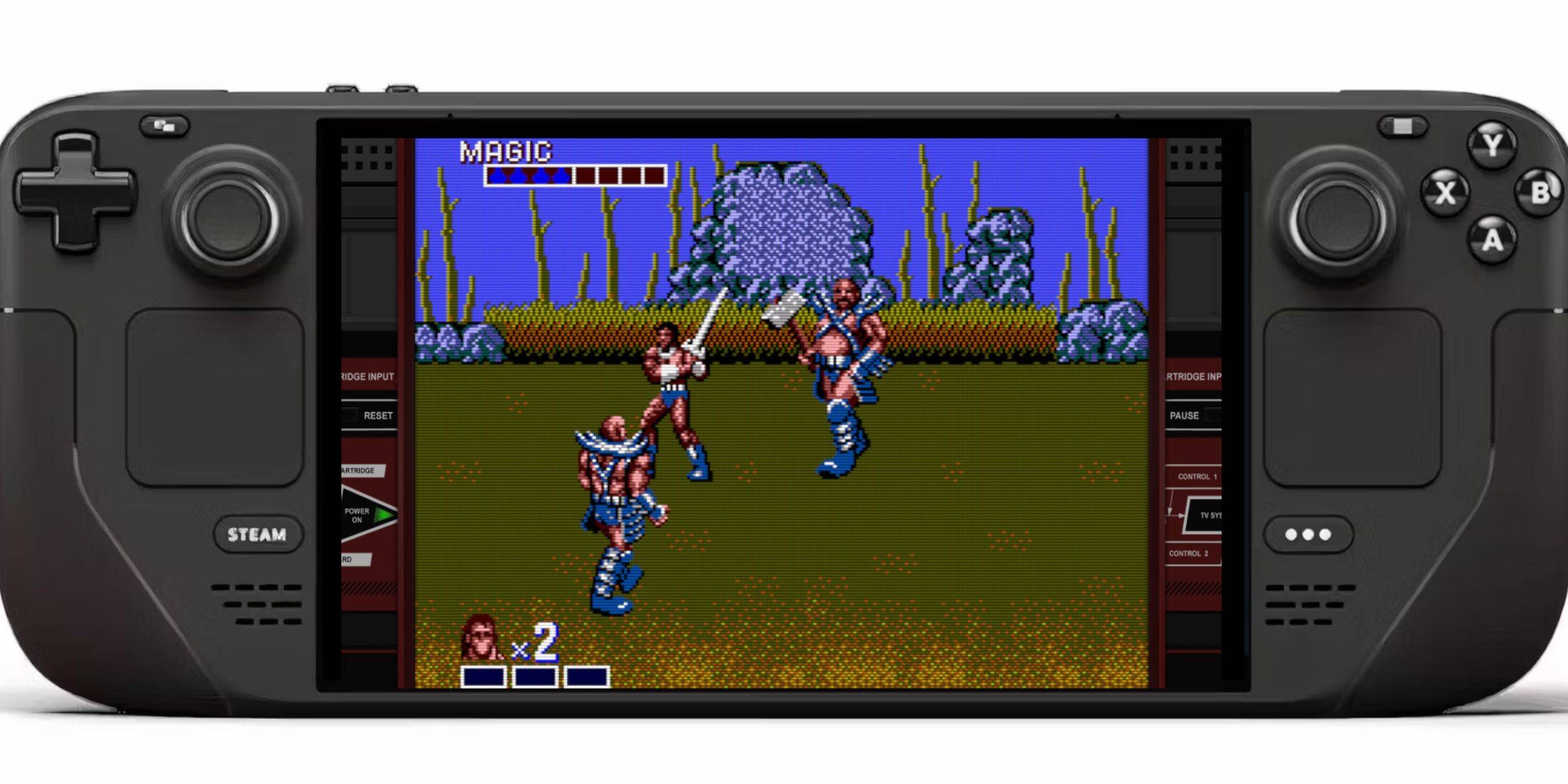 After the Steam Rom Manager has added the games and artwork to your Steam library, you can play them just like official titles:
- In Gaming Mode, press the Steam button below the left trackpad.
- Select Library from the side menu.
- Press the R1 button to access the Collections tabs.
- Click on the Sega Master System window.
- Choose your desired game and start playing.
Improve Performance
To enhance the performance of your Sega Master System games:
- Launch your game and press the QAM button under the right trackpad.
- Open the Performance menu.
- Enable 'Use game profile'.
- Set the Frame Limit to 60 FPS.
- Turn on Half Rate Shading.
Install Decky Loader For The Steam Deck
 EmuDeck developers recommend installing Decky Loader and the Power Tools plugin to optimize performance for emulated games:
- Connect a keyboard and mouse for easier navigation, or use the trackpads and on-screen keyboard (Steam + X).
- Switch to Desktop Mode from Gaming Mode via the Steam button, then Power.
- Open a web browser (downloadable from the Discovery Store if needed).
- Navigate to the GitHub Decky Loader page and click the Download icon.
- Once downloaded, double-click the launcher and select Recommended Install.
- Restart your Steam Deck in Gaming Mode after installation.
Install Power Tools
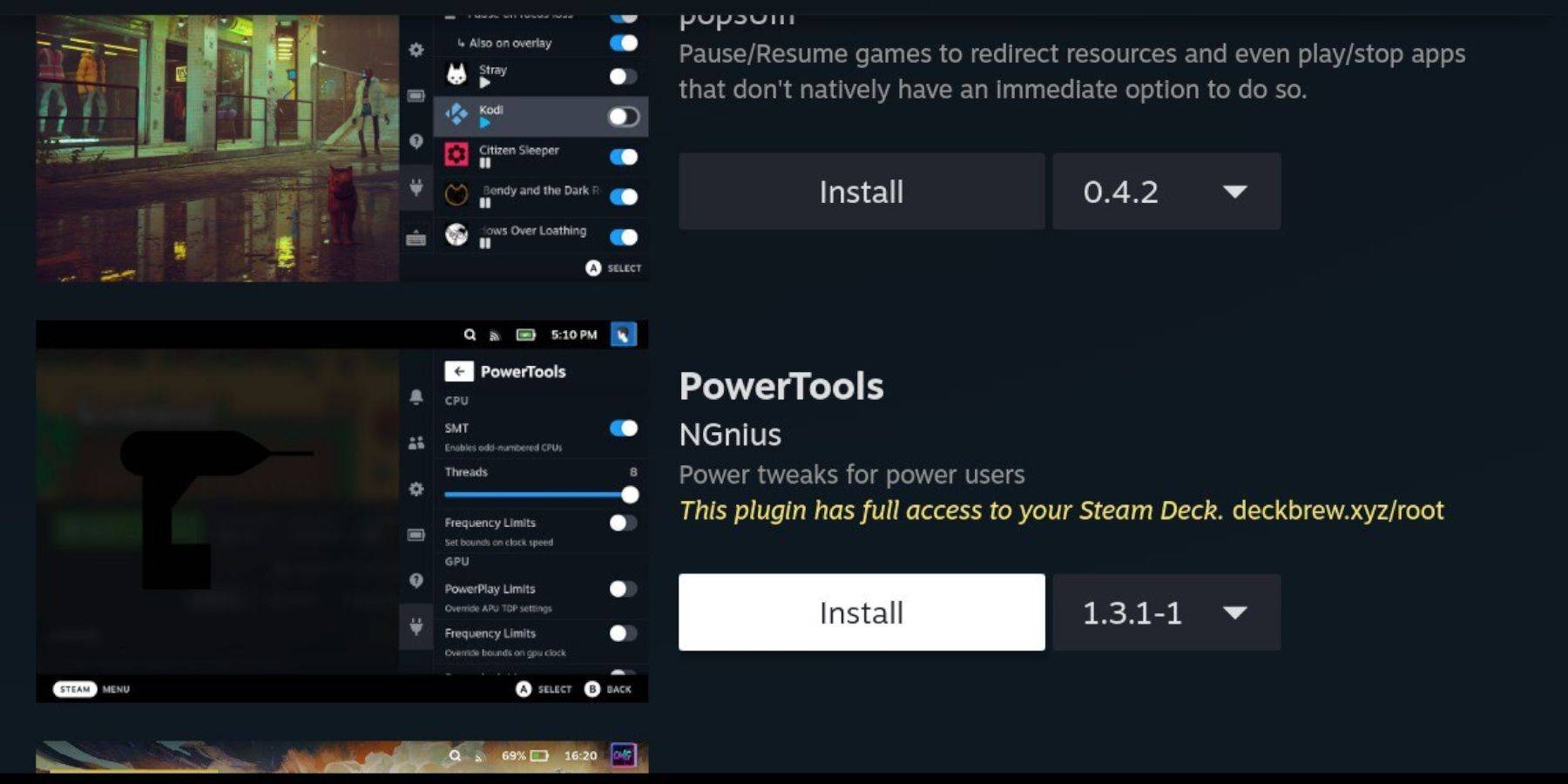 With Decky Loader installed, add the Power Tools plugin:
- In Gaming Mode, press the QAM button under the right trackpad.
- Select the new plugin icon at the bottom of the QAM.
- Click the store icon at the top of the Decky Loader menu.
- Find and install the Power Tools plugin in the Decky Store.
Power Tools Settings For Emulated Games
To optimize your Sega Master System games with Power Tools:
- From your Library, launch a Master System game.
- Press the QAM button, then select Decky Loader and the Power Tools menu.
- Disable SMTs.
- Set the number of Threads to 4.
- Open the Performance menu via the QAM button and the battery icon.
- Enable Advanced View.
- Turn on Manual GPU Clock Control.
- Set the GPU Clock Frequency to 1200.
- Save these settings as a Per Game Profile.
Fixing Decky Loader After A Steam Deck Update
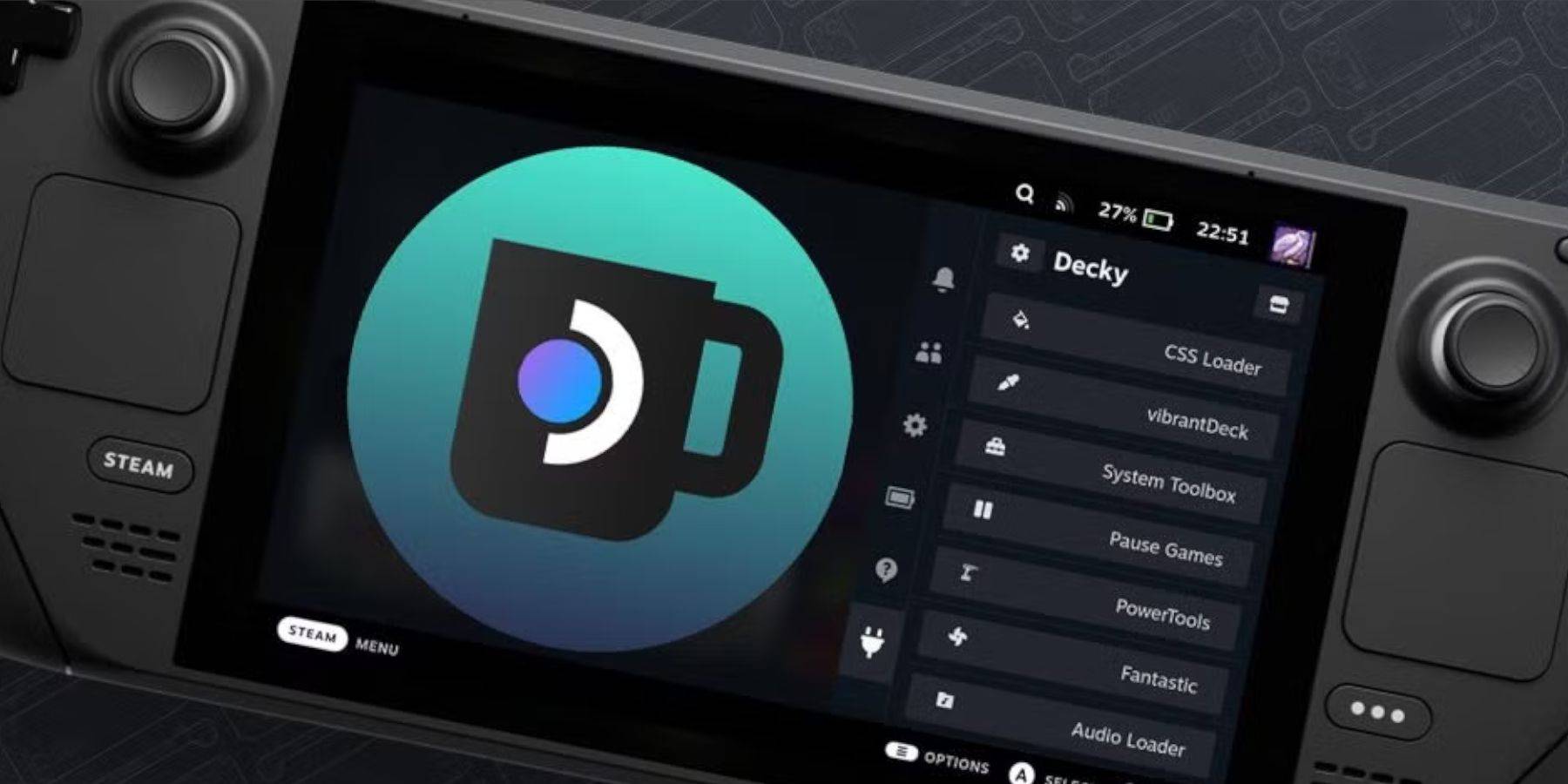 Steam Deck updates can sometimes remove third-party apps from your Quick Access menu. Here's how to restore Decky Loader and its plugins:
- Switch to Desktop Mode from Gaming Mode via the Steam button and Power menu.
- Open a browser and visit the Decky Loader GitHub page.
- Click the Download icon and select Execute this time.
- Enter your pseudo password when prompted. If you haven't set one up, follow the on-screen instructions to create one.
- After installation, power off and restart your Steam Deck in Gaming Mode.
- Press the QAM button to access Decky Loader and your restored settings and plugins.
 Rate NowYour comment has not been saved