Your in-game name in Blizzard games is more than just a nickname; it's your online identity, a reflection of your personality and gaming style. But what happens when that cool name gets old? Fortunately, changing your name is a straightforward process, though it varies slightly depending on your platform.
Table of Contents
- Can you change your name in Overwatch 2?
- How to Change Your Name in Overwatch 2
- Changing Your Nick on PC
- Changing Your Name on Xbox
- Changing Your Username on PlayStation
- Final Recommendations
Can you change your name in Overwatch 2?
Yes! Changing your Overwatch 2 name is possible, but the method depends on your platform and cross-play settings. This guide will walk you through the process for PC, Xbox, and PlayStation.
How to Change Your Name in Overwatch 2
Your in-game name is tied to your Battle.net account (your BattleTag). Here's what you need to know:
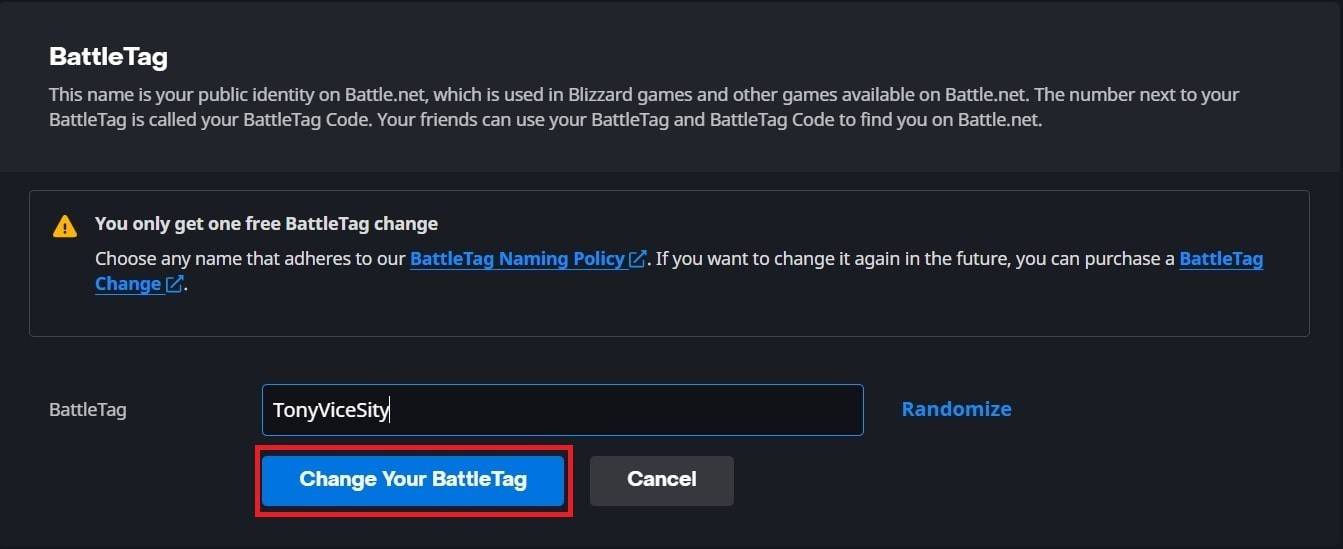
- First Name Change: Free!
- Subsequent Changes: Involve a fee (approximately $10 USD; check the Battle.net shop for your region's price).
- Cross-play Enabled: Name changes are handled through Battle.net, regardless of platform.
- Cross-play Disabled: Name changes are handled through your console's settings.
Let's dive into the specifics for each platform.
Changing Your Nick on PC
This method also applies to console players with cross-platform play enabled.
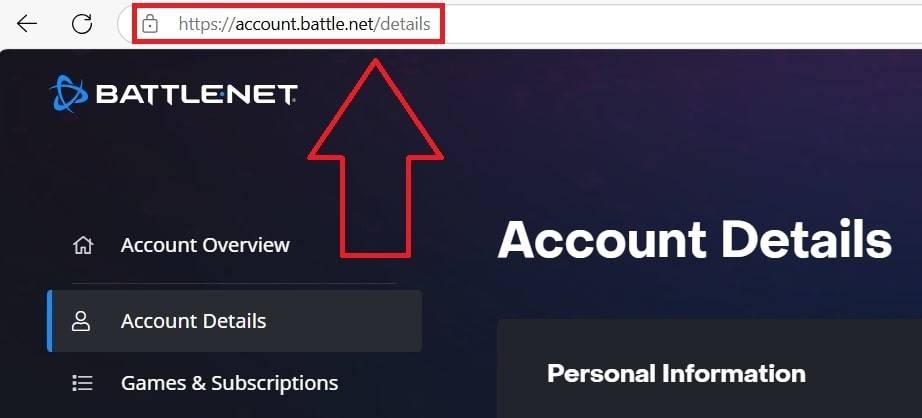
- Visit the official Battle.net website and log in.
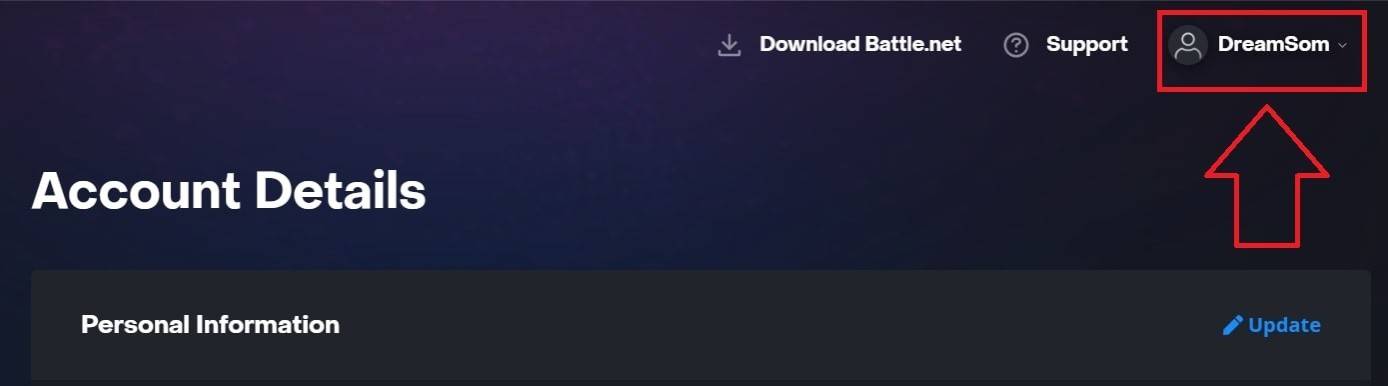
- Click your current username in the top-right corner.
- Select "Account Settings."
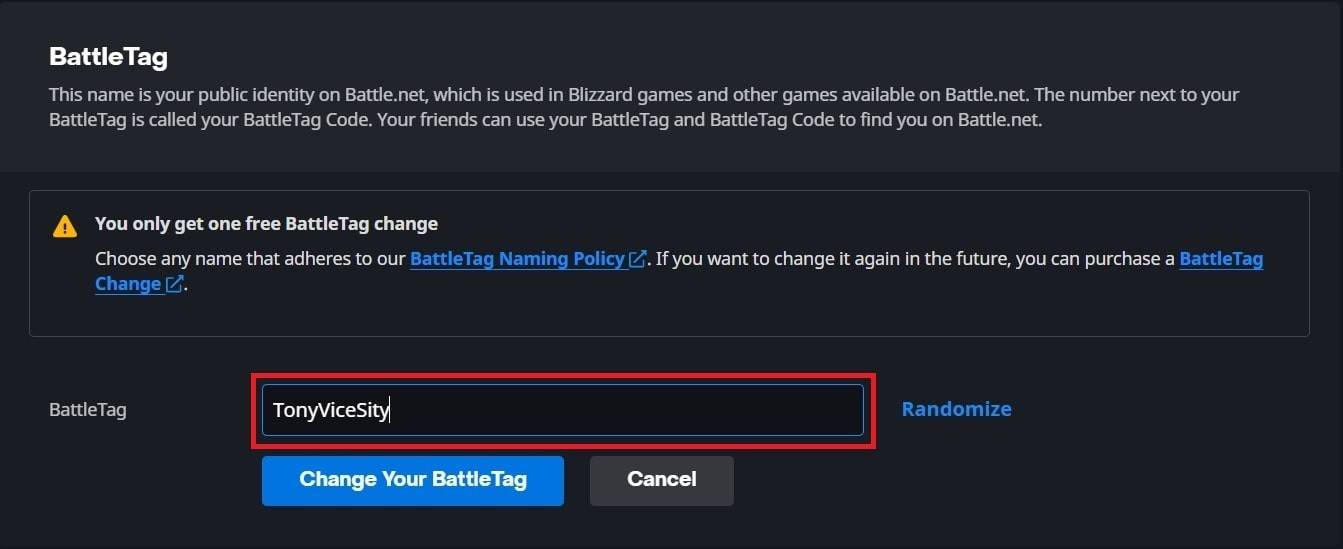
- Locate your BattleTag and click the blue "Update" pencil icon.
- Enter your new desired name (following BattleTag naming policies).
- Click "Change Your BattleTag."
Your new BattleTag might take up to 24 hours to fully update across all Blizzard games.

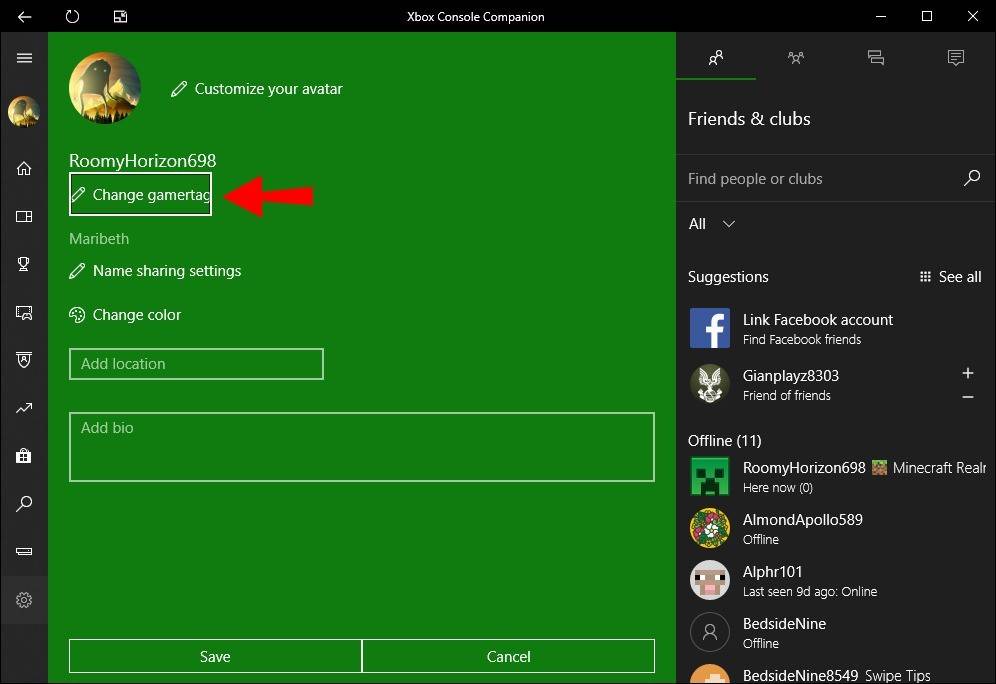
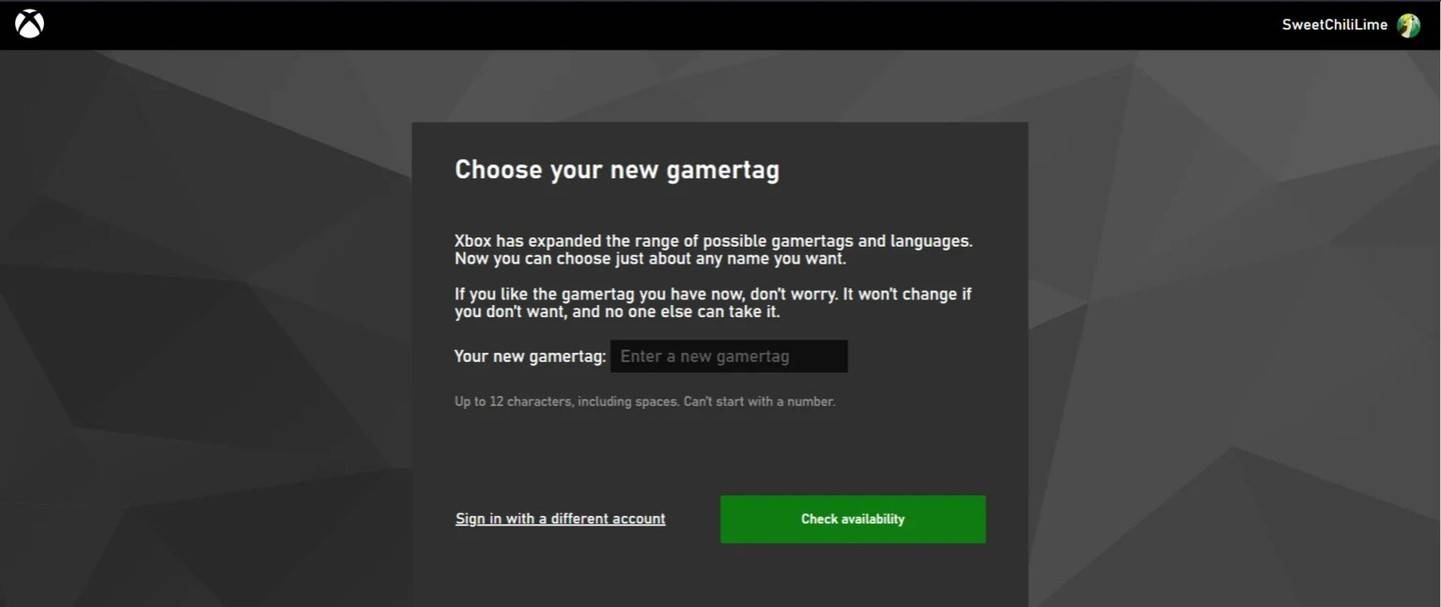
Changing Your Name on Xbox
(For Xbox players with cross-platform play disabled.)
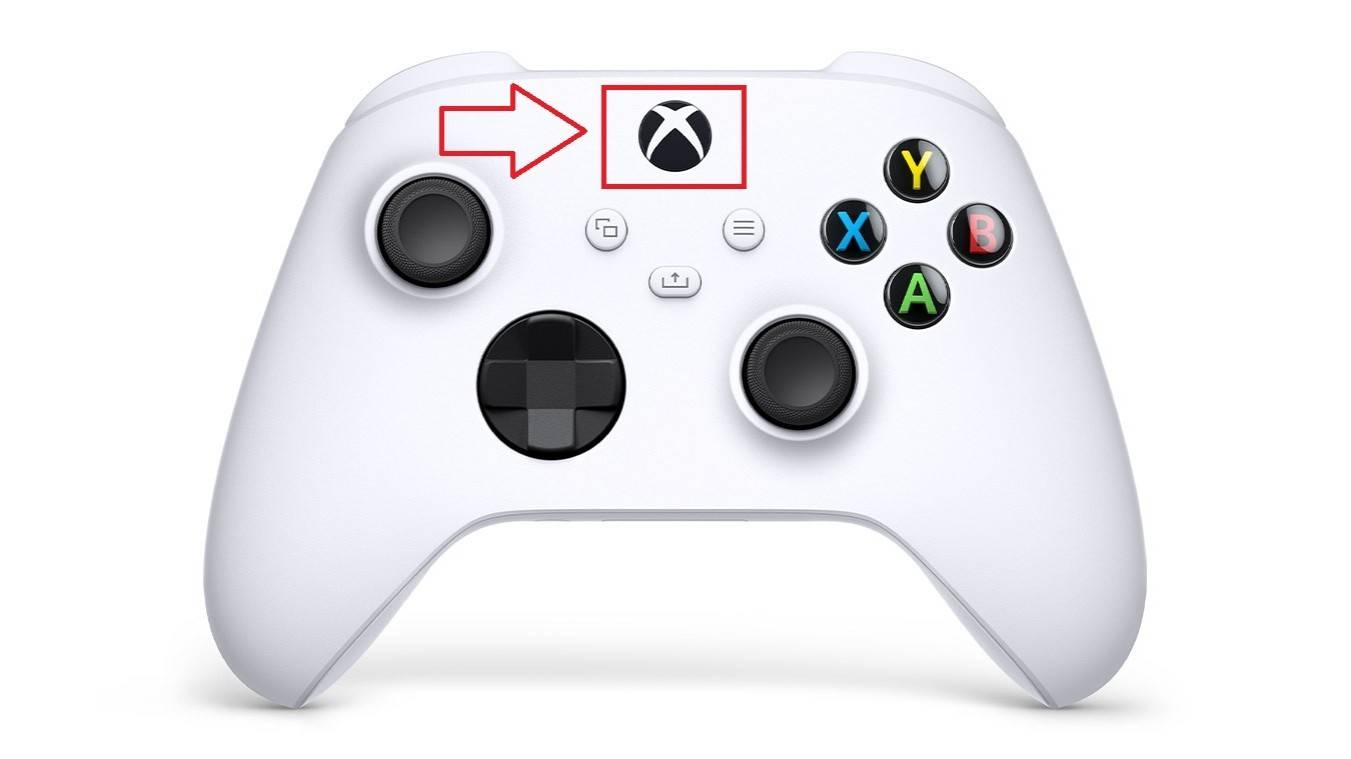
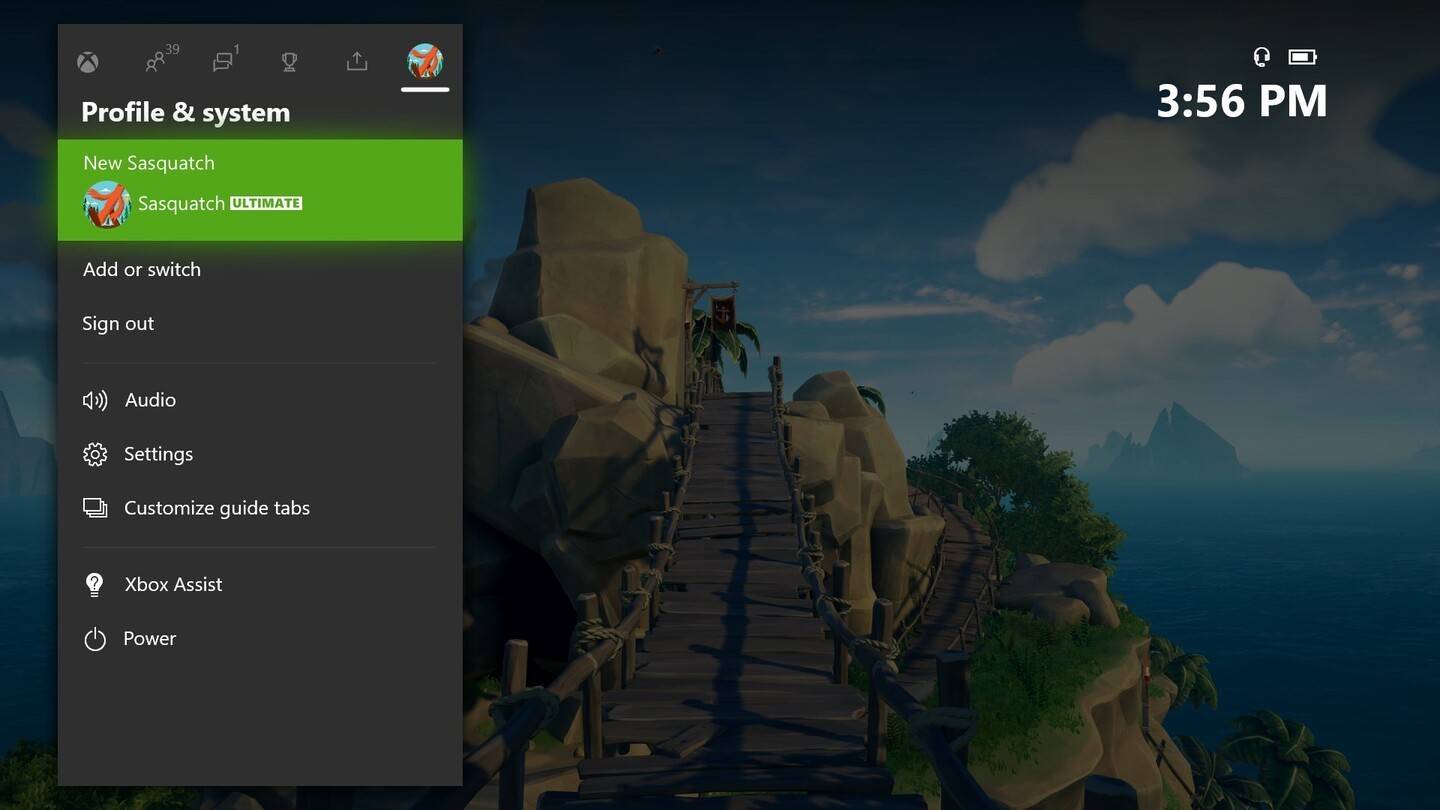
- Press the Xbox button to open the main menu.
- Go to "Profile & System," then select your Xbox profile.
- Choose "My Profile," then "Customize Profile."
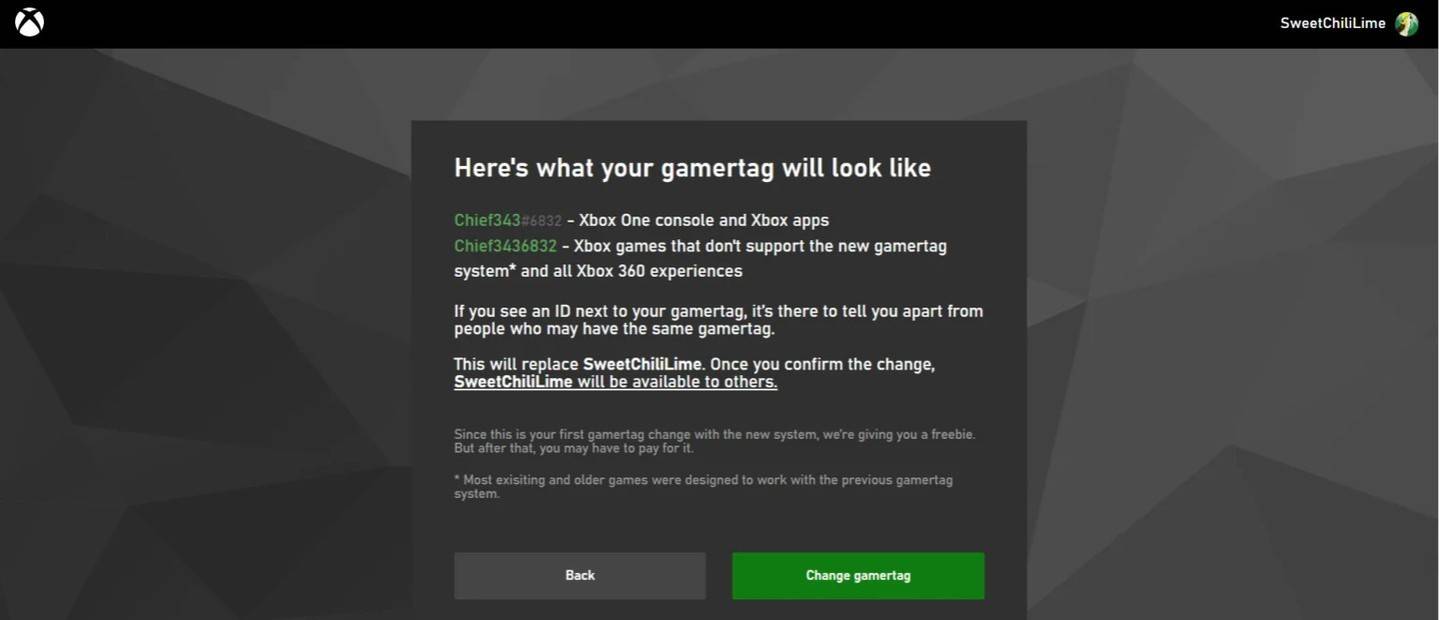
- Click your current Gamertag and enter your new name.
- Follow the on-screen instructions to confirm.
Remember: With cross-play disabled, your new name will only be visible to other Xbox players who also have cross-play disabled.
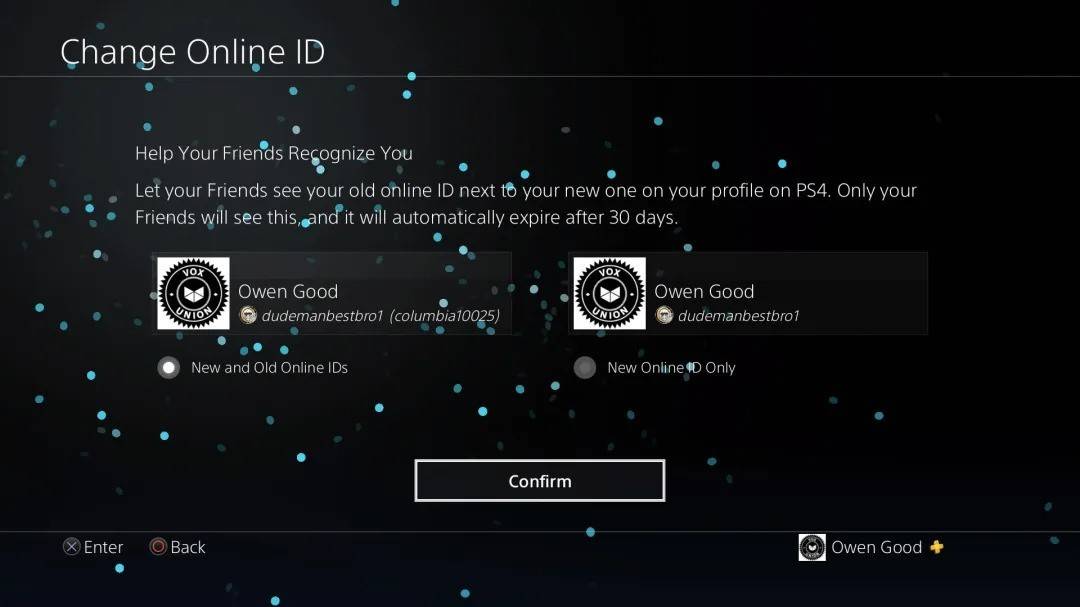
Changing Your Username on PlayStation
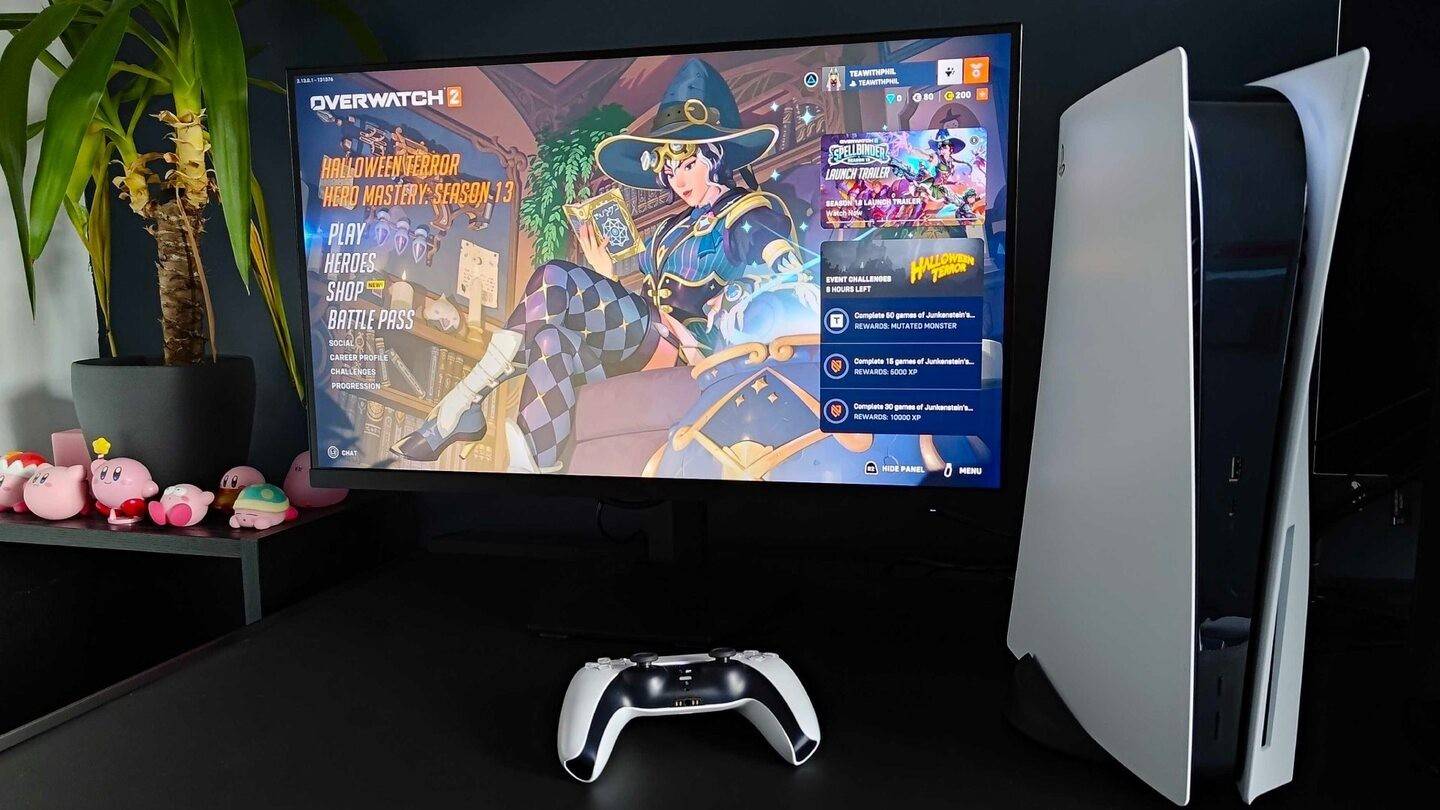
(For PlayStation players with cross-platform play disabled.)
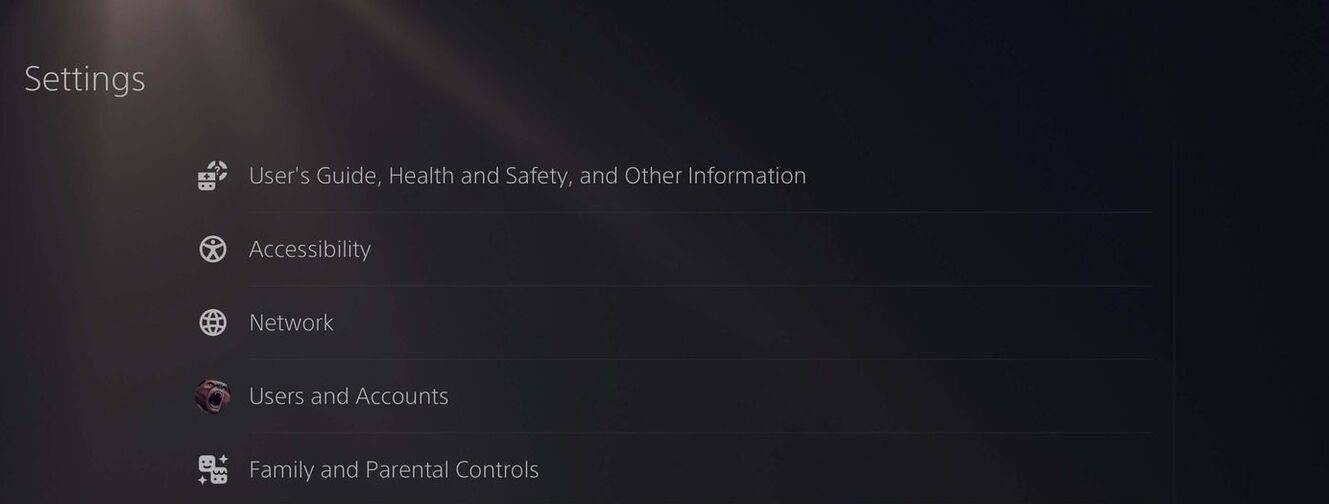
- Open PlayStation settings and go to "Settings."
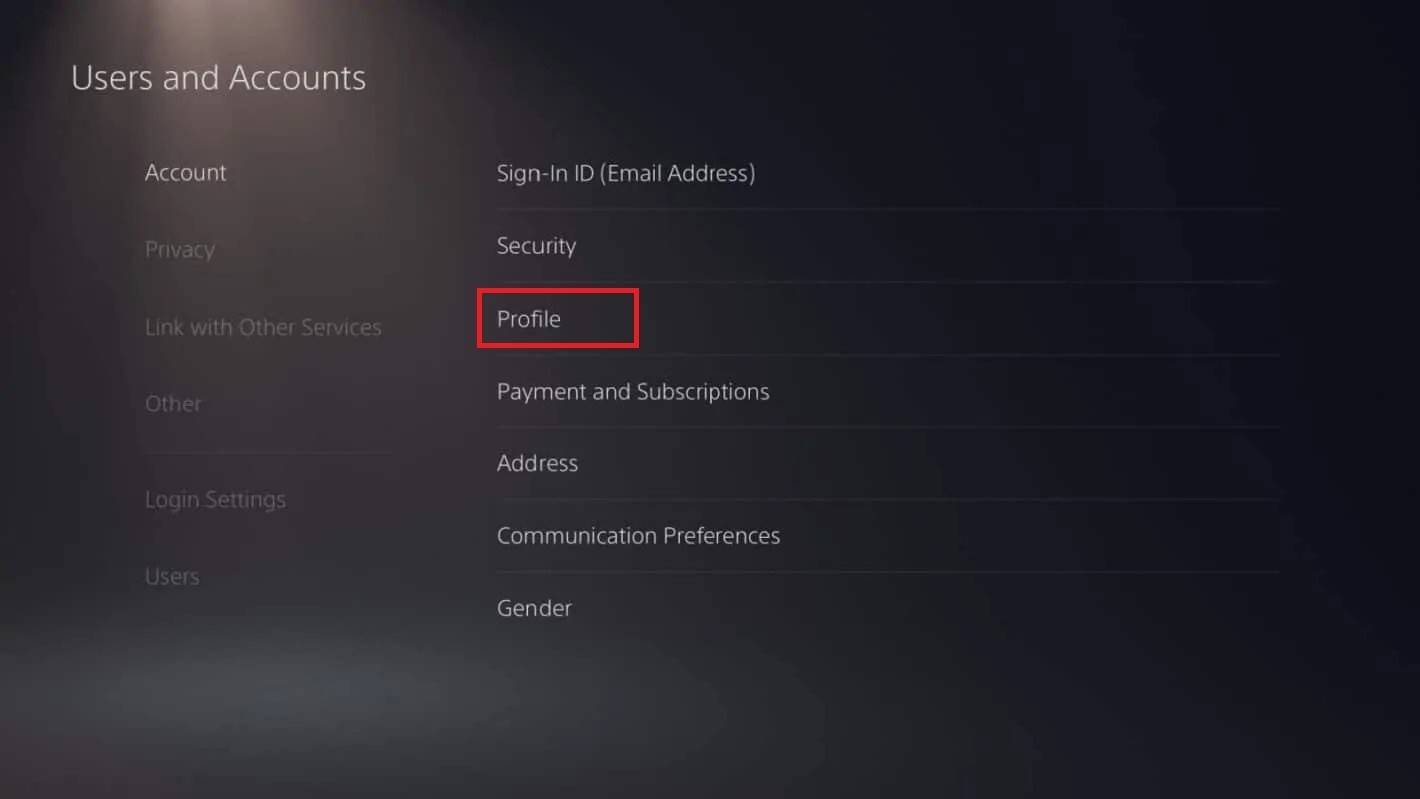
- Select "Users and Accounts."
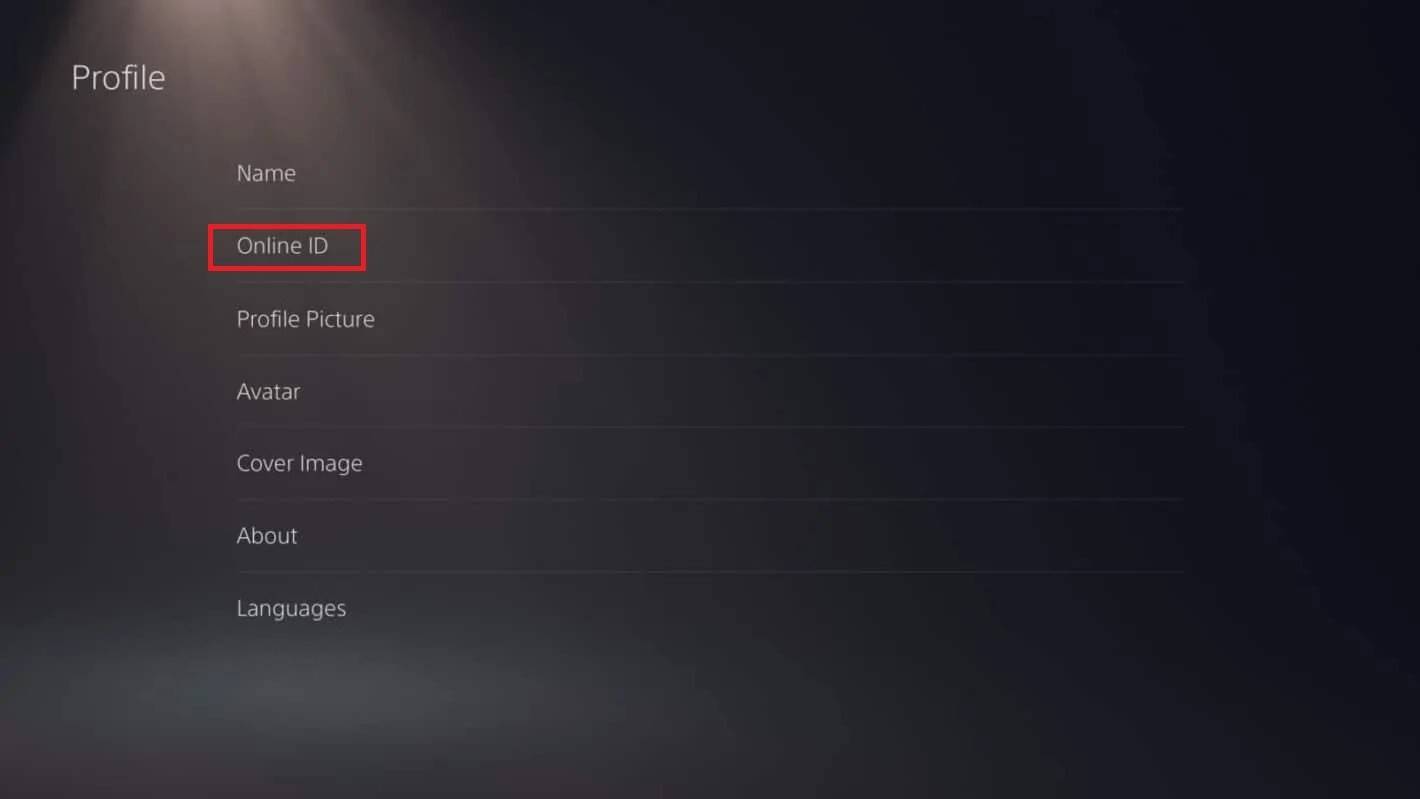
- Go to "Accounts," then "Profile."
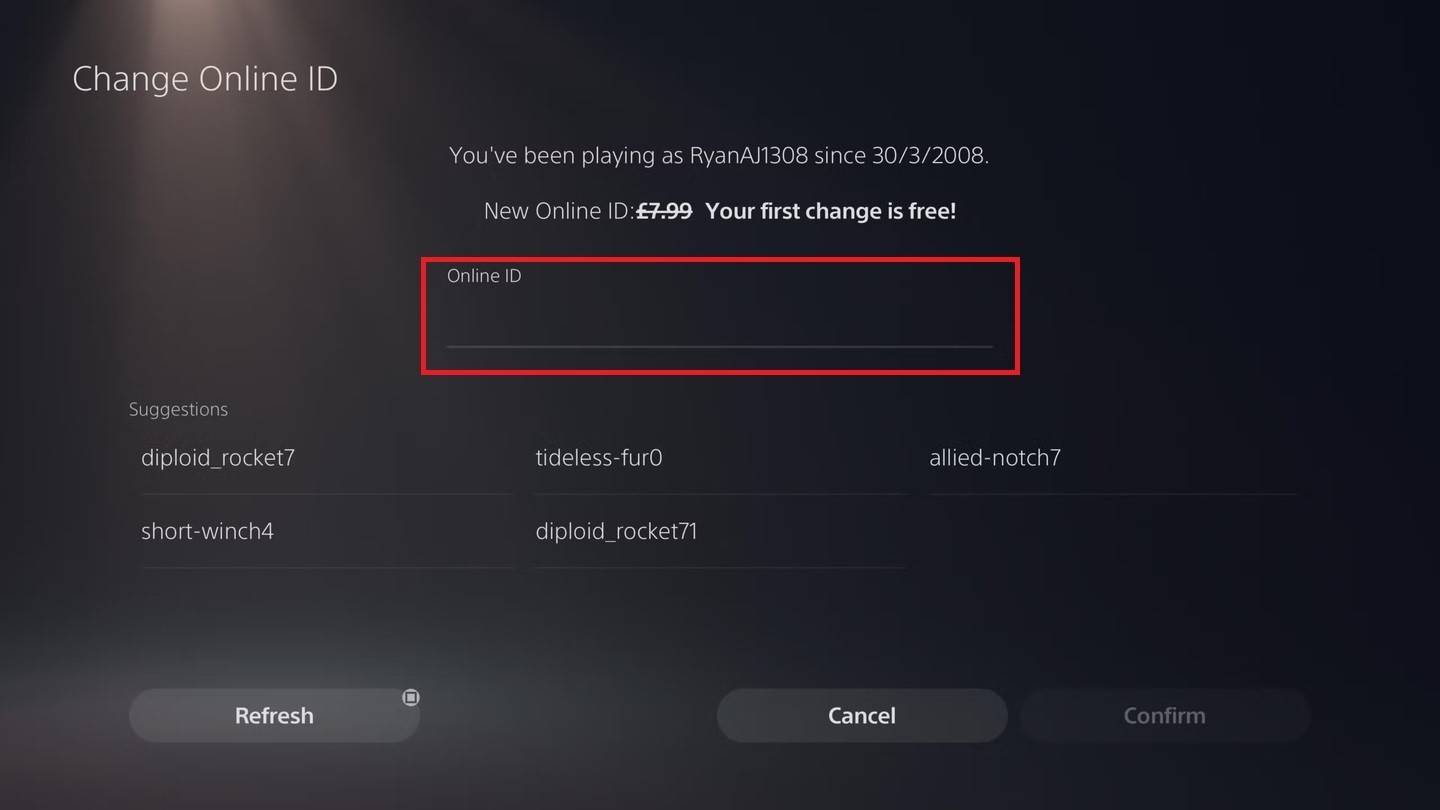
- Find "Online ID" and click "Change Online ID."
- Enter your new name and confirm.
As with Xbox, this new name is only visible to other PlayStation players with cross-play disabled.
Final Recommendations
Before changing your name, determine which method applies to you based on your platform and cross-play settings. Remember that only one free BattleTag change is allowed. Subsequent changes require payment. Ensure your Battle.net Wallet has sufficient funds if needed.